Login Token with a Docker local setup
Setup
You have to make sure to follow the Docker local setup procedure before doing the following procedure.
Procedure
- Start the
localenvironment’s containers with docker (Docker local setup procedure) - Log in in
devenvironment (using demo1, throughhttps://demo1.dev.login.phpr.link), it is recommended to log into dashboard as it is one of the lighter projects.
- Once logged in on the
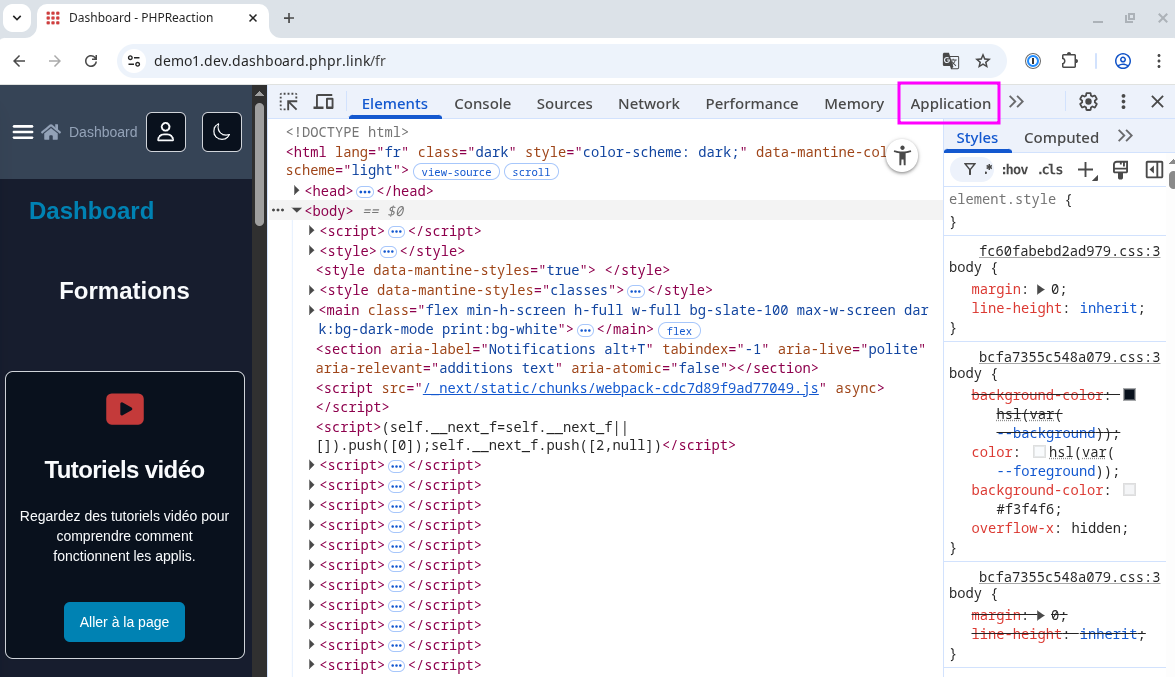
devenvironment (not local, dev), access your browser’s dev tools (On Chromium-based browsers, it should be easily done with the F12 or Ctrl+i) - Inside the
devenvironment’s authenticated page, access the dev tools’s pages cookies through :- (In Chromium’s dev tools, the cookies should be stored in the Application tab)
- (In Firefox’s dev tools, the cookies should be stored in the Storage tab)
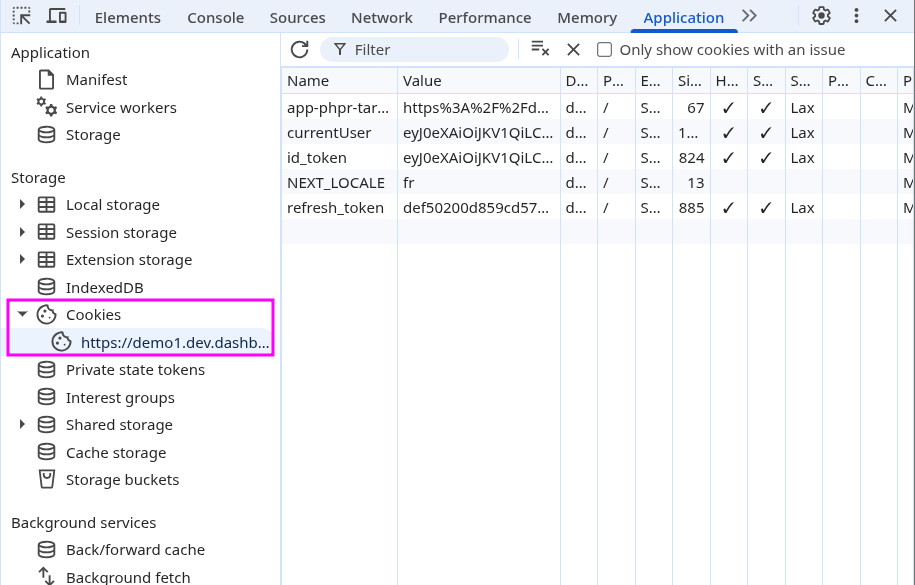
- Inside the
devenvironments’s page’s cookie tab, find the cookie namedcurrentUser, go see it’s value (It should be inside the cookie’sValuetab) and copy it. (To select it, double click the right slot, then copy it) - Inside the
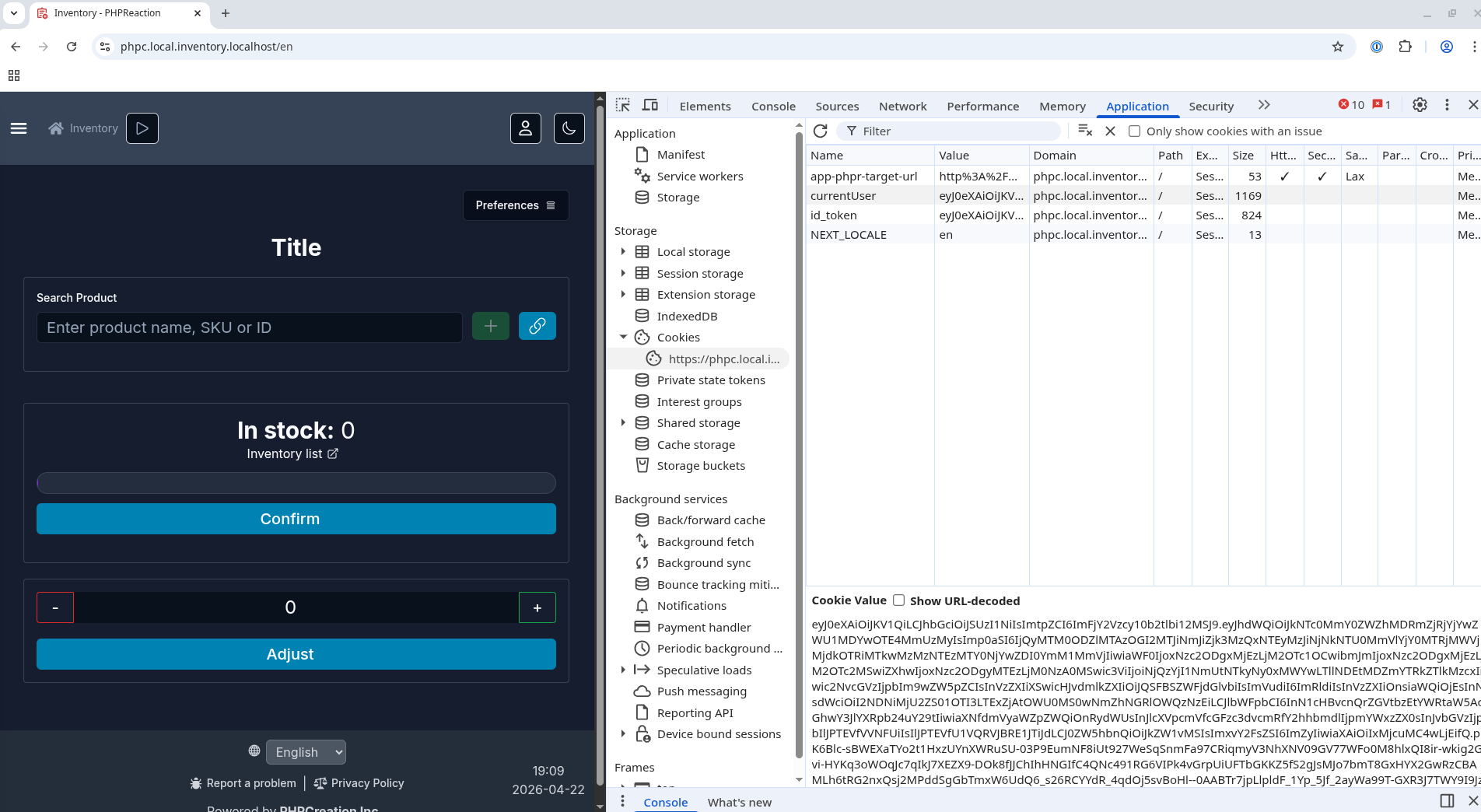
localenvironment’s unauthenticated page (not logged in), access the dev tools to create a cookie (in the cookie tab), namedcurrentUseras the one copied. Make sure you paste the right value in. (Note : In case of unwanted redirections, you may need to access the /status pagehttp://phpc.local.{app-name}.localhost/fr/status) - Repeat the steps 4 to 6, but with the cookie named
id_tokeninstead. - Repeat the steps 4 to 6, but with the cookie named
refresh_tokeninstead. This will allow token refreshing and will prevent you from having to redo this procedure when working for an extended time on the same app. - The local page should now work as if you were authenticated, allowing for easier debugging and feature adding.
Known errors
Getting the JWSSignatureVerificationFailed: signature verification failed : Here are the reasons it could occur
Known potential reasons :
- The pasted value may be the right one. To verify this, you can compare the copied cookie’s size with the pasted cookie’s, if they do not match, please paste the right value.
- LoginFaker might be enabled :
- Ensure the environment variable FAKER_ENABLED is either absent or set to false
FAKER_ENABLED='false'. Make sure it is not being overriden by another .env file or at runtime by the docker compose configuration file. - (Note : Depending on the version of the package, the LOGIN_FAKER environment variable should be removed as it will always pass as true once being checked as a string inside an if statement)
- Ensure the environment variable FAKER_ENABLED is either absent or set to false
- The tenant or environment might not match, please ensure to get a token that matches the local setup’s environment and tenant. (also note that they are both defined by environment variables)
Last updated on