Import Usage
This document explains how to prepare a file, run an import, and read the result. It applies to the CSV import feature exposed through the Import Job API and the in-app import screens.
Related:
- API V3 Import Jobs for the endpoint contract.
- Jobs (Legacy Reference) for the original notes on header actions.
Overview
An import takes a CSV file and turns each row into an entity. The first row of an existing entity is updated instead of created when the target already exists in the database. The rest of the rows are created.
An import runs in two steps:
- Create the import job. The file, its name, and the import options are stored as an
import_jobresource. No rows are written yet. - Execute the import job. The job is pushed to the messenger queue and picked up by a worker.
The worker runs the import asynchronously. The HTTP call that starts the execution only confirms that the job was queued. It does not return the result of the run, because the row processing happens later in a separate worker process. To see what the worker did, read the job logs.
Access is protected by the standard IMPORT roles. A user without an import role cannot create or execute an import job.
Where imports run
- Application path:
PROJECT/job/import/ - Example:
https://demo.phpreaction.com/job/import/ - A single job view:
https://demo.phpreaction.com/job/import/{id}
In the application, an import is reached through Parameters then System then Import task, or from the import button on an entity listing when the import feature is enabled for that project.

Preparing the CSV
The header row names the target fields of the entity. Each value below maps to the field in its column.
notes,supplier,type,translations/locale,translations/title,translations/description
test,1,1,fr_CA,test import,test import
Rules:
- The first line is the header. Column order is free, but each header must match a known field or a supported path.
- A relation is written with the id of the related entity, or targeted by another field with
findBy(see below). - Translatable fields use the
translations/prefix, together with atranslations/localecolumn that sets the language of the row. - The field delimiter defaults to
,and the text delimiter defaults to". Both can be changed per job. - A required field of the target entity must not be left empty. An empty required field fails the row.
Header field actions
A column header can carry an action. The action is added after the field name with a pipe, for example product|findBy(sku). Only one action is allowed per field.
| Action | Header syntax | Effect |
|---|---|---|
| Create | field | Default behavior. Creates a new row. |
| Skip | field|skip | On conflict, do not modify the existing row. Checked on the value of the column. |
| Update | field|update | On conflict, update the existing row. Checked on the value of the column. |
| Update only | field|updateOnly | Update existing rows and ignore rows that do not exist. |
| Date | field|date | Convert the value to a date in YYYY-MM-DD format. |
| Find by | relation|findBy(field) | Resolve a relation by a field other than its id, for example product|findBy(sku). |
| Set language | translations/field|setLang | Set the locale used to write a translatable field. |
| Inventory adjust | number|importInventoryAdjust | Adjust stock by the difference between the current and the requested inventory, instead of writing an absolute value. |
| Custom function | field|yourFunction | Run a custom function defined in the repository of the imported entity. |
Conflict means a duplicate on the checked value.
Inventory adjust example
number|importInventoryAdjust with values 10 10 -20 against current inventory of 5 11 0 produces adjustments of 5 (5 + 5 = 10), -1 (11 - 1 = 10), and -20 (0 - 20 = -20).
Custom function
To add a custom action:
- Add
|yourFunctionafter the field name in the header. - Add the matching function in the repository of the imported entity.
resourceId|findByClientCode is an example of a repository function used as an import action.
Metadata configuration
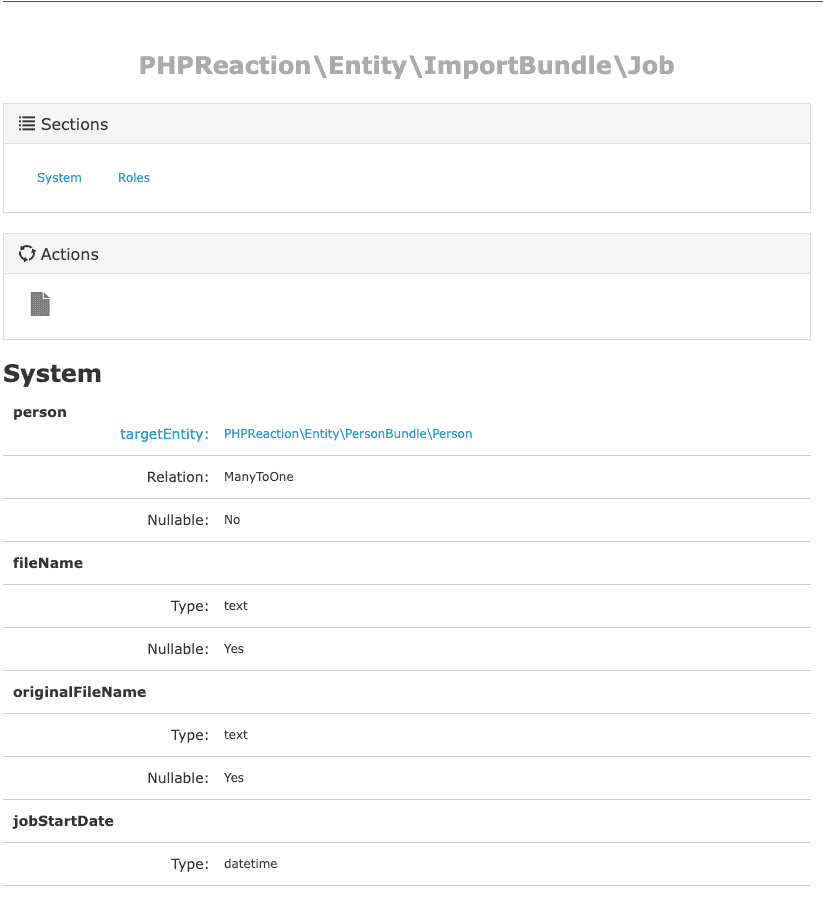
Fields that are available for import are declared in the entity metadata. This is where a column name is bound to an entity property.
- Configure at
ParametersthenImportthenConfigurationthenMetadata. - List of entities:
/metadata/entities - Single entity:
/metadata/entity/PHPReaction%5CProductBundle%5CEntity%5CProduct
Validation modes
The validation option controls what the worker does when a row is invalid.
| Value | Behavior |
|---|---|
validate | Default. Validate every entity. If anything is invalid, the import fails and nothing is written. |
skipValidation | Do not validate. Rows are written without validation checks. |
saveValidOnly | Validate every entity and write only the valid ones. Invalid rows are skipped. |
The validation runs inside the worker, not at the moment the job is created or queued. A file with invalid rows can still be uploaded and queued without error. The failure is reported in the job log.
Running an import in the application
- Prepare the CSV with the correct header row.
- Open the import screen for the entity.
- Upload the file and choose the field delimiter, text delimiter, and validation mode.
- Confirm to create the job.
- Execute the job to send it to the queue.
- Open the job view to read the result once the worker has run it.
Running an import through the API
Create the job, then execute it. See API V3 Import Jobs for the request body and responses.
POST /open-api/v3/import_jobs/entity/{bundle}/{entity}/savewith the base64 file and options. This returns the created job, including its id.POST /open-api/v3/import_jobs/{id}/executeto push the job to the queue.
Reading the result
Open the job view at job/import/{id}. The log shows a dry run summary followed by the import run.

Dry run result

New entries: 5
Updated entries: 0
Skipped rows: 0

Import start (2025-04-10 01:50:28)
1
Error 1: product.uniqueEntity.sku
Error 2: product.type.notNull

Import error (2025-04-10 01:50:28)
The dry run counts what the import would do. The import run reports the errors raised while writing. In validate mode, one invalid row stops the whole import, so the counts in the dry run can differ from what ends up written.
Common errors:
product.uniqueEntity.sku: a row conflicts with an existing SKU. Useupdate,updateOnly, orskipon that column if a conflict is expected.product.type.notNull: a required field is empty. Fill the column or remove the row.
Re-running a failed import
The stored job can be run again without re-uploading the file.
- From the CLI:
./console phpreaction:import:job {id} - From the application: the relaunch button on the job view (route
import_job_launch).

References
Symfony backend and legacy documentation for the import feature:
- Jobs (Legacy Reference): the original Symfony import notes, repository functions, and header actions.
- PHPR import system (Confluence) : the internal design of the import system.
- Support for importing data (EN) : public feature documentation.
- Assistance importation (FR) : public feature documentation in French.
- Import massif de donnees dans votre ERP : the metadata format and file examples (metadata , examples ).